

Every “best college laptop” list leads with the same headline numbers: processor, RAM, screen size, starting price. What most skip is the trade-off baked into the design — the thing that isn’t technically a flaw, just a decision the manufacturer made that might not match how you’ll actually use the laptop across four years of coursework, deadlines, and dorm-room wear and tear.
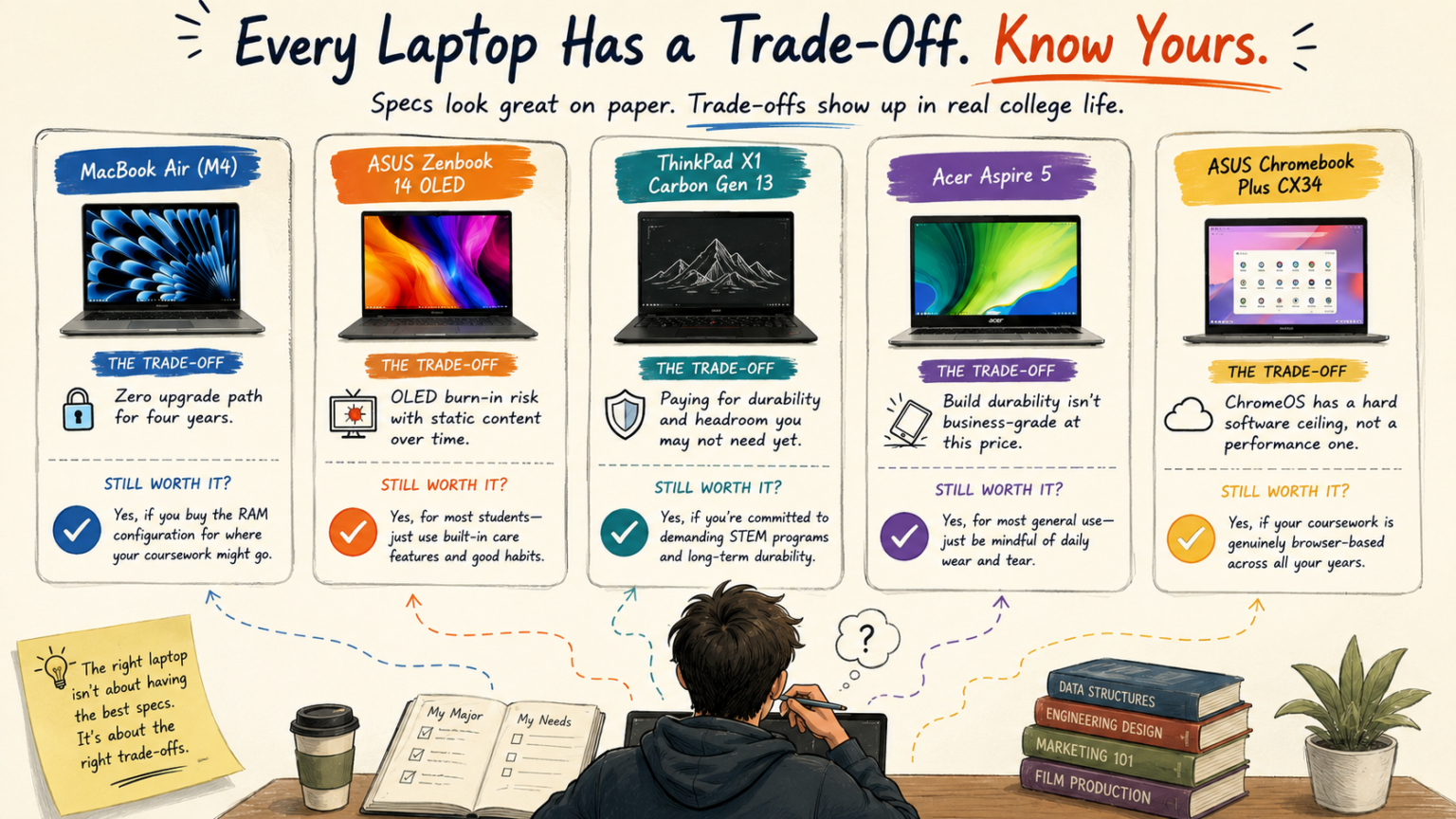
- MacBook Air (M4): The Trade-Off Is Zero Upgrade Path for Four Years
- ASUS Zenbook 14 OLED: The Trade-Off Is Display Longevity Under Static Use
- Lenovo ThinkPad X1 Carbon Gen 13: The Trade-Off Is Paying for Durability You May Not Need Yet
- Acer Aspire 5: The Trade-Off Is Business-Grade Durability Isn’t Included at This Price
- ASUS Chromebook Plus CX34: The Trade-Off Is a Hard Software Ceiling, Not a Performance One
- Spec Sheet vs. Real-World Trade-Off
- FAQ’s
- Conclusion
This guide flips the usual format. For each laptop, we lead with the trade-off a typical review glosses over, then explain whether it’s still the right buy for college despite it.
MacBook Air (M4): The Trade-Off Is Zero Upgrade Path for Four Years
The MacBook Air’s battery life and fanless design are genuinely excellent for a full day of back-to-back classes, and at clearance pricing around $999–$1,099, it’s a strong value. The trade-off reviews mention but rarely emphasize: RAM is fixed at purchase with no upgrade path, ever — and you’re likely keeping this laptop for all four years of college, possibly longer.
Base configurations ship with 16GB unified memory, maxing out at 32GB. That’s genuinely fine for most majors through graduation. But a freshman who starts in general studies and shifts into a data-heavy minor sophomore year has no way to add memory later — the decision made at checkout freshman year determines the ceiling for the entire degree.
Is it still worth it? Yes, if you buy the RAM configuration for where your coursework might go, not just where it starts. If there’s a realistic chance you’ll need more computing headroom by junior or senior year, pay for the higher tier now.
ASUS Zenbook 14 OLED: The Trade-Off Is Display Longevity Under Static Use
The Zenbook 14 OLED’s display is a legitimate standout — reviewers specifically praise its color accuracy and contrast for visual coursework, and starting around $999–$1,199, it undercuts many comparably-equipped competitors. The trade-off that gets less attention in glowing reviews: OLED panels carry a long-term burn-in risk with static content displayed for extended periods, which is a genuine consideration for a laptop you might use for hours-long study sessions with the same document or interface on screen.
Manufacturers build in mitigations — pixel-shift functions and screensavers designed specifically to reduce this risk — but it’s a real trade-off inherent to OLED technology, not eliminated by software alone.
Is it still worth it? Yes, for most students — the display quality genuinely earns its reputation, and modern OLED Care features meaningfully reduce (though don’t eliminate) the risk. Just don’t leave static content on screen indefinitely without at least occasional screen breaks, the same habit that protects any OLED display.
Lenovo ThinkPad X1 Carbon Gen 13: The Trade-Off Is Paying for Durability You May Not Need Yet
The ThinkPad X1 Carbon Gen 13’s MIL-SPEC build quality and business-grade reliability are genuinely impressive, and its 32GB RAM configuration gives STEM students real headroom for demanding coursework. The trade-off: starting around $1,999, it’s a meaningfully larger investment than every other laptop on this list, and that premium is specifically paying for durability and processing power that not every student’s coursework — even within STEM — actually requires from day one.
A freshman engineering student taking mostly intro courses may not need 32GB of RAM and MIL-SPEC ruggedness until upper-level coursework kicks in during junior year — meaning the premium is being paid upfront for headroom used later, if at all.
Is it still worth it? Yes, specifically for students already committed to demanding STEM programs where the processing power and multi-year durability are a near-certainty, not a maybe. For students still exploring their major or on a tighter budget, this is the laptop to grow into rather than start with.
Acer Aspire 5: The Trade-Off Is Business-Grade Durability Isn’t Included at This Price
The Acer Aspire 5’s combination of a Core i5 processor, 16GB RAM, and 512GB SSD for under $700 is genuinely strong value, and day-to-day performance holds up well for research, writing, and video calls. The trade-off a straightforward spec comparison misses: build quality and long-term durability, while solid, don’t match business-line laptops like the ThinkPad — a meaningful consideration for a laptop that’s getting tossed in a backpack, dropped, and generally lived with for four years of student life.
Is it still worth it? Yes, for most general coursework use — the performance genuinely matches what most majors need. If your college lifestyle involves particularly rough daily handling (frequent travel, no protective sleeve, heavy daily wear), factor the durability gap into your decision alongside the price difference.
ASUS Chromebook Plus CX34: The Trade-Off Is a Hard Software Ceiling, Not a Performance One
The Chromebook Plus CX34, priced around $325–$400, is a genuinely strong budget pick — reviewers note its build quality feels more premium than the price suggests, complete with a backlit keyboard that’s rare at this price point. The trade-off that’s easy to underestimate: this isn’t a performance limitation you can work around with patience — ChromeOS fundamentally cannot run most CAD software, MATLAB, or many specialized development environments, regardless of how much RAM or processing power the hardware technically has.
Students sometimes assume a “slower” budget laptop just handles heavy software slowly. A Chromebook doesn’t handle it slowly — it often can’t run it at all, which is a fundamentally different problem to plan around.
Is it still worth it? Yes, but only after confirming your coursework is genuinely browser-based across your expected years in the program — not just your first semester’s course list. Check your major’s software requirements before committing, since switching platforms mid-degree is a bigger disruption than most budget-driven laptop swaps.
Spec Sheet vs. Real-World Trade-Off
| Laptop | What the Spec Sheet Shows | The Trade-Off It Doesn’t Show |
|---|---|---|
| MacBook Air (M4) | 16GB RAM, upgradeable to 32GB at purchase | No upgrade path after purchase — buy for your whole degree, not just year one |
| ASUS Zenbook 14 OLED | Vibrant, color-accurate OLED display | Long-term burn-in risk with static content, partially mitigated by software |
| ThinkPad X1 Carbon Gen 13 | MIL-SPEC durability, 32GB RAM option | Premium pays for headroom that may not be needed until upper-level coursework |
| Acer Aspire 5 | Strong specs under $700 | Build durability doesn’t match business-line laptops for years of daily wear |
| ASUS Chromebook Plus CX34 | Strong value, premium-feeling build | ChromeOS is a hard software ceiling, not a performance one, for specialized apps |
FAQ’s
Should I buy a laptop that covers my freshman-year needs or my senior-year needs?
Generally, buy for the more demanding end of your expected coursework, especially on laptops with non-upgradeable RAM. It’s cheaper to pay more upfront than to replace a laptop mid-degree because it can no longer keep up.
Is OLED burn-in a real concern for a laptop used for note-taking and studying?
It’s a minor, long-term risk rather than an urgent one — modern OLED Care features (pixel-shift, screensavers) meaningfully reduce it. Occasional screen breaks during long static-content sessions are a reasonable, low-effort precaution.
How do I know if my major will need more computing power than I currently think?
Check your department’s course catalog for upper-level requirements, or ask an academic advisor whether later coursework involves simulation, CAD, data science, or other resource-intensive software — this is more reliable than guessing based on your first semester’s schedule.
Is a Chromebook ever the wrong choice even for browser-based coursework?
It can be, if your program occasionally requires a single piece of specialized software (a statistics package, a niche writing tool) that has no browser-based alternative — check for exceptions, not just your primary workflow, before committing to ChromeOS.
Conclusion
None of these trade-offs make the laptops bad choices for college — the MacBook Air, ASUS Zenbook 14 OLED, ThinkPad X1 Carbon Gen 13, Acer Aspire 5, and ASUS Chromebook Plus CX34 are all genuinely strong picks in their categories. The difference between a laptop that serves you well for four years and one you’re frustrated with by sophomore year usually comes down to understanding the trade-off baked into the design before you buy, not after you’ve declared your major and it’s too late to easily switch.
Pricing, specifications, and availability for laptops change frequently and may have been updated since this article was published. Always verify current pricing and specs directly on the manufacturer’s or retailer’s official website before purchasing. This article is for informational purposes and does not constitute professional purchasing advice.